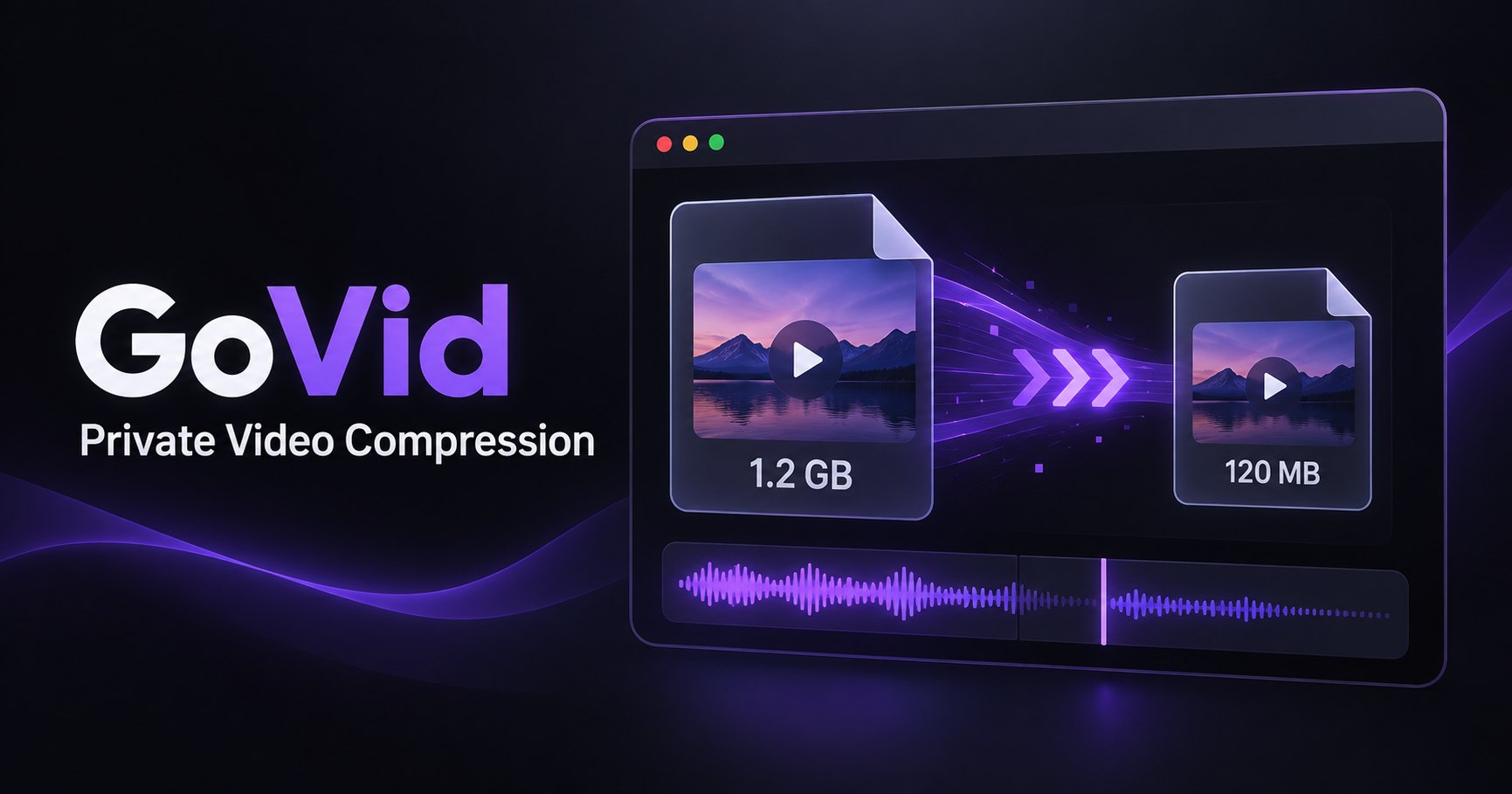
How to Compress an MP4 Video Privately Online
To compress an MP4 privately, choose the file in GoVid, select a quality level or lower resolution, and download the result. FFmpeg WebAssembly performs the work inside your browser, so the MP4 is never sent to GoVid.
What makes an MP4 file smaller?
Video size is driven mainly by duration, resolution, frame rate, codec, and bitrate. GoVid changes the encoding settings while preserving the length of the clip. Lowering the resolution from 1080p to 720p usually saves more space than a tiny quality adjustment, while removing audio can help for silent screen recordings.
Which setting should I choose?
Start with Balanced compression and keep the original resolution when visual detail matters. Choose High compression or 720p when the file must be much smaller. GoVid shows the final size after processing, and you can adjust the settings and recompress if the first result is not the balance you want.
Is browser compression private?
Yes. GoVid reads the selected MP4 from local browser memory and runs FFmpeg locally through WebAssembly. There is no upload step, account, or cloud processing queue. Closing or refreshing the page clears the working session.
How do I compress an MP4 with GoVid?
Choose or drop an MP4, review the compression settings, select Compress Video, preview the result, and download it. Processing speed depends on the video length, chosen settings, and your device because your own processor performs the encode.
Compress a video privately